The microphones built into modern smartphones are surprisingly capable. Apple’s iPhone 15 Pro and Samsung’s Galaxy S24 Ultra both feature multi-microphone arrays originally designed for voice calls and video recording; but with the right technique and minimal equipment, they can produce audio that rivals budget studio setups.
Whether you’re recording a podcast, capturing music demos, producing voiceovers, or documenting field audio, your smartphone can deliver professional results. The key is understanding its limitations and compensating for them strategically.
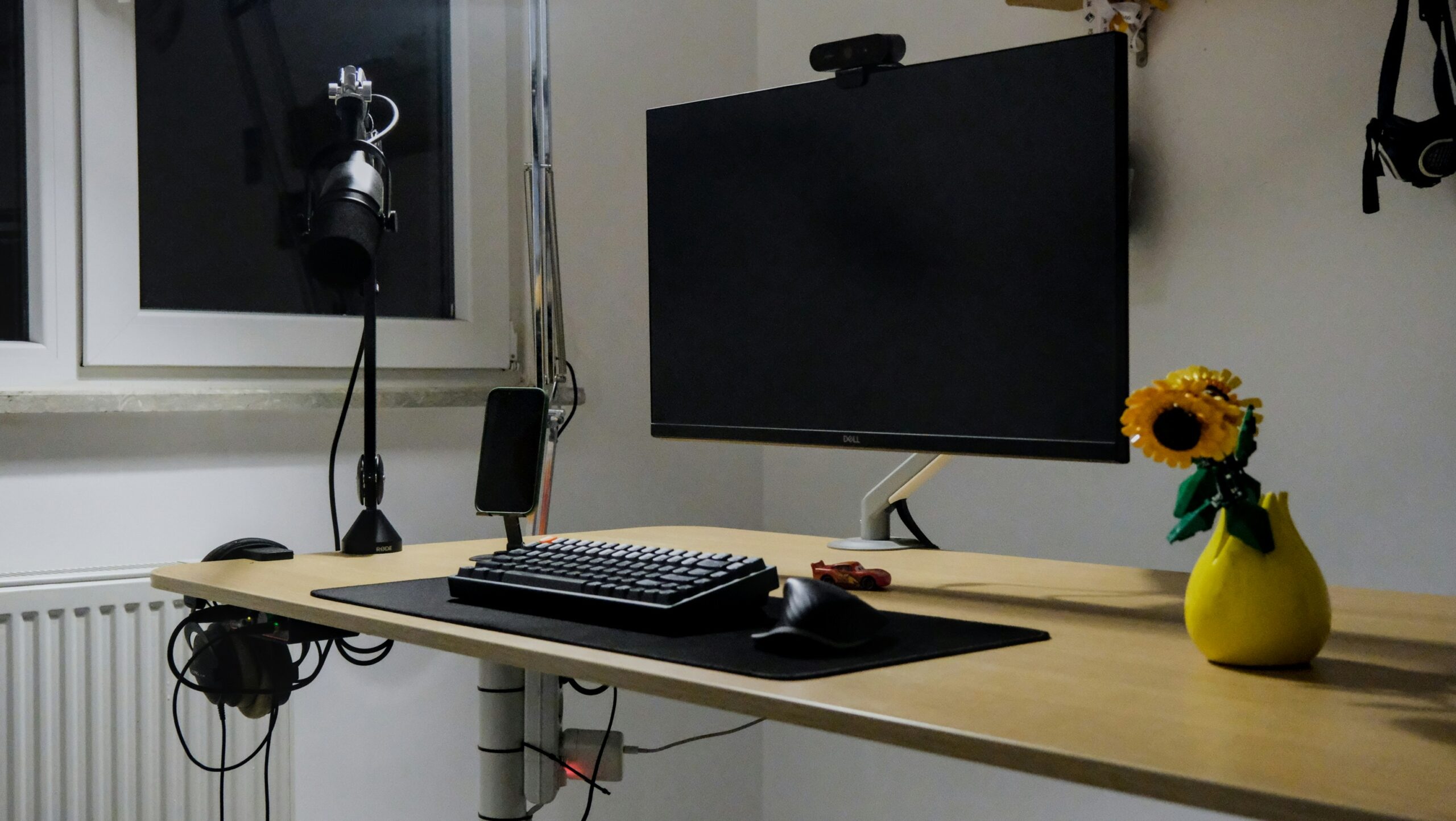
Upgrade Your Microphone
The built-in mic on your phone is an omnidirectional microphone designed to pick up sound from all directions: great for phone calls, terrible for focused recording. An external microphone is the single most impactful upgrade you can make.
- For spoken word and podcasting, lavalier (clip-on) microphones like the Rode SmartLav+ or Boya BY-M1 connect directly to your phone’s headphone jack or Lightning/USB-C port and cost between $20 to $60.
- For music and ambient recording, the Shure MV88 or Zoom iQ7 provide stereo condenser quality in a pocket-sized form factor.
If your phone lacks a headphone jack (most modern phones don’t), you’ll need a Lightning-to-3.5mm or USB-C-to-3.5mm adapter. Apple’s official adapter costs $9 and handles the digital-to-analog conversion cleanly. In all, understand audio formats and when to use each.
Control Your Recording Environment
Room acoustics matter more than microphone quality. A $300 mic in a reflective, echoey room will sound worse than a $20 lavalier in a treated space. The Physics of Sound laboratory at the University of Salford found that room reflections degrade speech intelligibility by up to 30% in untreated environments.
You don’t need professional acoustic panels. Record in a small, furnished room; closets filled with clothes are surprisingly effective makeshift vocal booths. Hang blankets on walls or over stands to absorb reflections. Close windows, turn off air conditioning, and silence refrigerators and other appliances. Background noise that your ears filter out will be mercilessly captured by the microphone.
Choose the Right Recording App
Your phone’s default voice recorder compresses audio to save space, which degrades quality. Dedicated recording apps offer uncompressed formats, manual gain control, and professional monitoring features.
For iOS, Ferrite Recording Studio is the industry standard for podcast recording and editing; it supports multi-track recording, noise reduction, and direct export to WAV or ALAC.
Voice Record Pro offers similar features with a simpler interface.
For Android, RecForge II and ASR Voice Recorder both support WAV recording at 44.1kHz/16-bit (CD quality) or higher.
Set your recording format to WAV or FLAC at 44.1kHz minimum. You can always compress later, but you can never recover quality lost during recording.
Recording Technique Essentials
Distance is everything. For speech, position the microphone 15–20 centimetres from your mouth. Too close and you’ll get plosive distortion on P and B sounds; too far and room reflections dominate. A simple pop filter, even a folded tissue held between your mouth and the mic, reduces plosives dramatically.
Enable airplane mode before recording. Nothing ruins a take like a notification sound. Monitor your levels if your app supports it; peaks should reach about -12dB to -6dB, leaving headroom for loud moments without clipping (distortion from overloading the microphone). If the waveform hits the top of the display, you’re too loud or too close.
Basic Editing and Post-Production
Raw recordings almost always benefit from light editing. Free software like Audacity (desktop) or GarageBand (iOS/Mac) handles the essentials: trimming dead air, normalizing volume, applying noise reduction, and adding gentle compression to even out quiet and loud passages.
The golden rule of editing: fix problems during recording, not in post. No amount of noise reduction can save a recording made next to an open window on a busy street. However, Audacity’s noise profile feature can effectively remove consistent background noise (fan hum, air conditioning, electrical buzz) without degrading the primary audio.
Final Tips
Always record a 10-second silence sample at the start of each session. This “room tone” is essential for noise reduction calibration during editing.
Use headphones to monitor while recording; they reveal problems your phone speaker masks. And always, always make a backup of your original unedited recordings before you start cutting. If you can, compare phone and laptop recording quality.
